 SPECTER
Every screen, explained
A guided tour of Specter
The user guide tells you how to operate Specter. This page shows you what each screen is for — the question it answers, how to read it, and what a good debrief looks like on it.
Getting Started
Top barWhere a new install begins. It adapts to the simulator you fly — DCS or Microsoft Flight Simulator — and offers each one its own bundled recordings, so you can see every screen working before you load a file of your own.
What it answers
"I just installed this — what is it, and what do I do now?"
How to read it
- Try it now loads a bundled mission in one click.
- The DCS / MSFS switch changes the whole page, and the whole app.
- How to use it is the four-step path from recording to debrief.
Worth knowing
The demos are real recordings, not canned video. Every tab on this page works on them, so nothing here is a mock-up.
Action Briefing
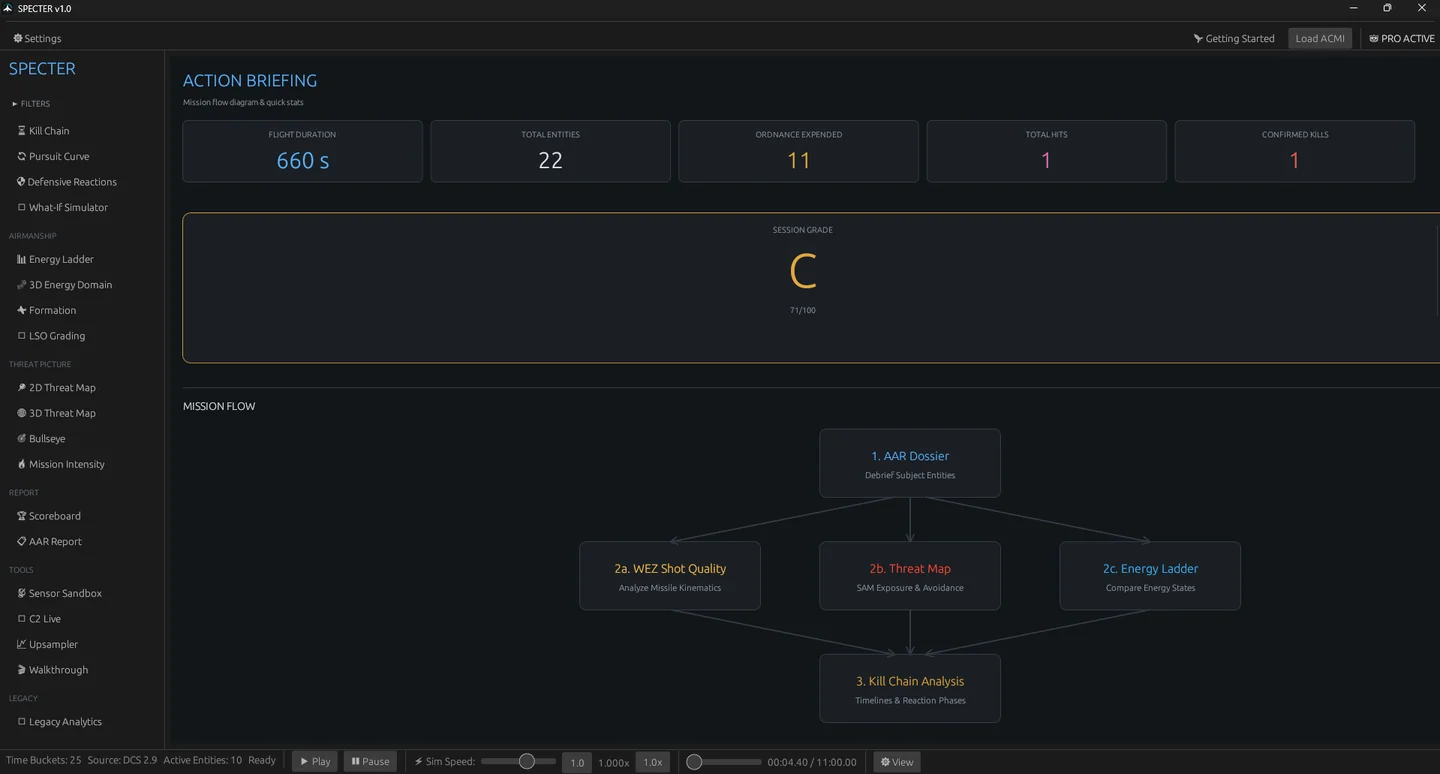
Replay · opens after every loadThe front page of the debrief. A summary of the mission, your session grade, and a flow diagram that points at the tabs worth visiting for this particular flight — so you are not guessing which of twenty screens has something to say.
What it answers
"What happened in this flight, and which part of it is worth studying?"
How to read it
- Start at the grade, then follow the flow diagram left to right.
- Each node is a link — click straight through to the tab that explains it.
Worth knowing
If a flight was uneventful the briefing says so. An empty debrief is information too.
3D Kill Cam
Replay · press 2Every kill reconstructed as a clip you can orbit, scrub and pause — shooter, target, weapon, and the geometry between them, over real terrain.
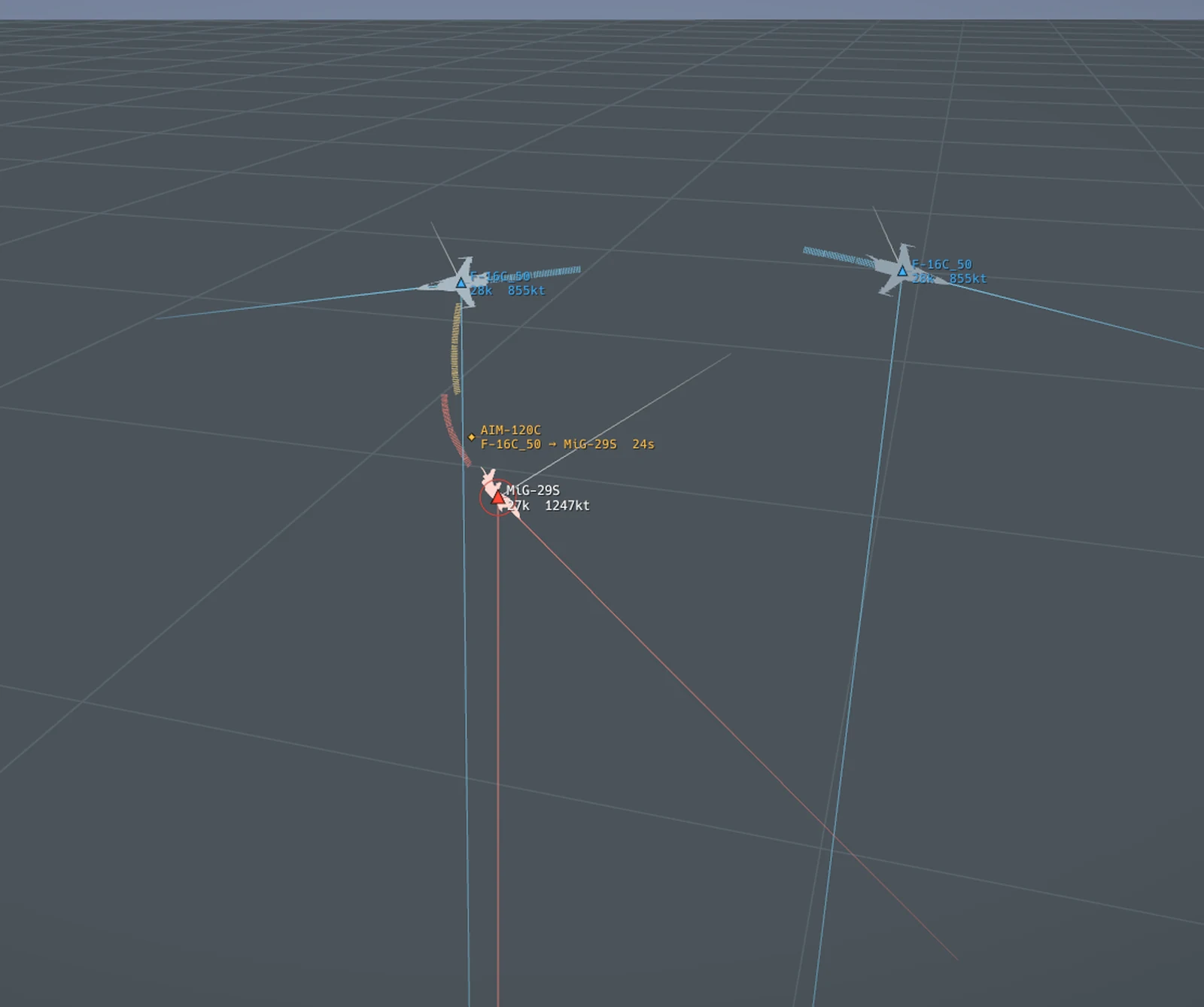
New in 1.2 The Players picker in the toolbar narrows the scene to chosen pilots. A pilot who respawns gets a new object id every time, so the roster groups by name and stitches their whole session together. It keeps whoever they fought by default — filtering a 1v1 to one side leaves a jet manoeuvring against nothing.
What it answers
"How exactly did that shot arrive — and could I have seen it coming?"
How to read it
- Left-drag to orbit, wheel to zoom, F for free-fly.
- Click a contact to track it; the camera follows that aircraft.
- Trails show where everyone came from, not just where they are.
Worth knowing
Terrain is real elevation data, so the ridgeline that masked a radar is the ridgeline that was actually there.
Global 3D
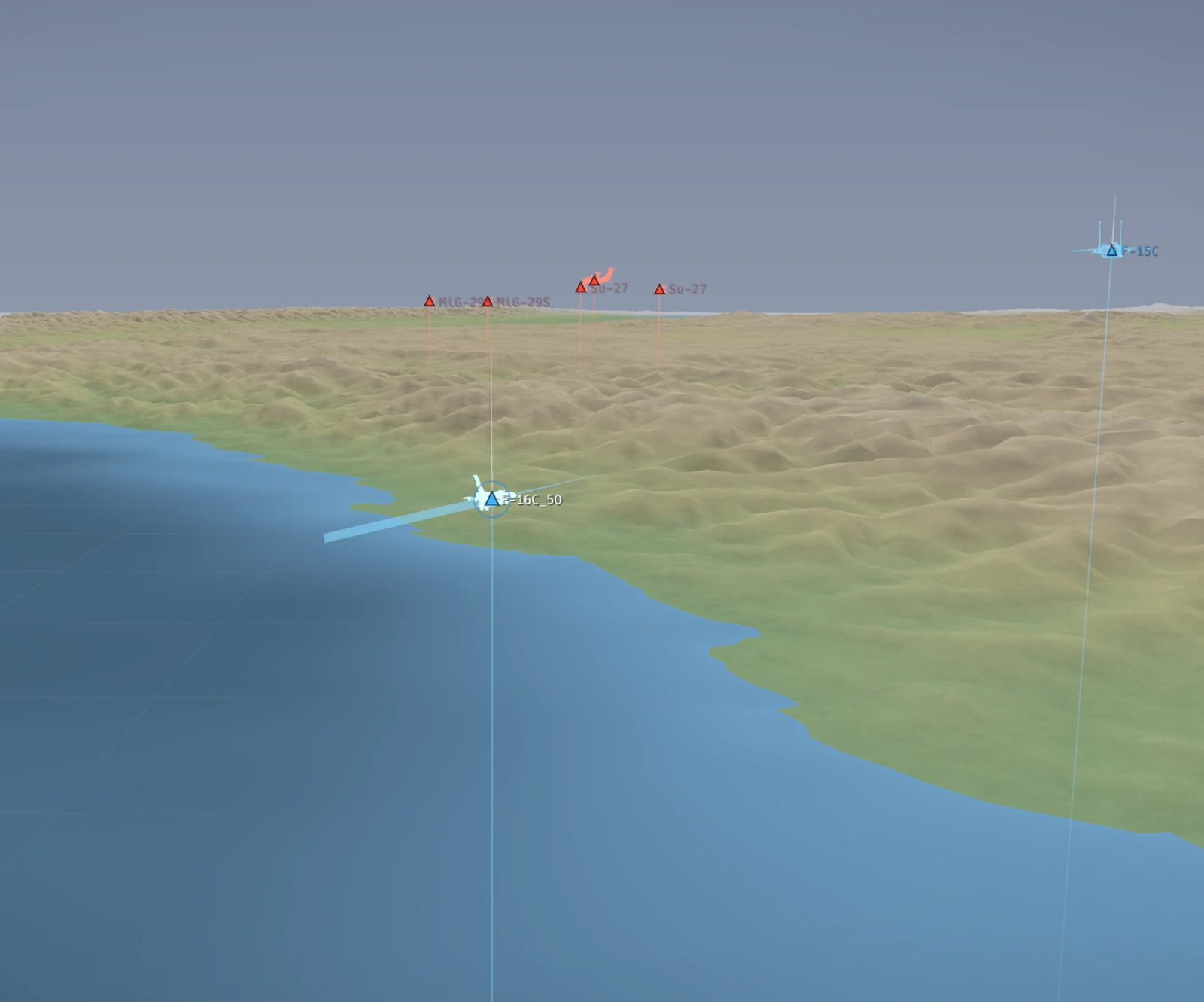
Replay · press 1 in MSFS modeThe whole mission at once, over a curved earth. Start here to see the shape of the engagement before you pick it apart.
What it answers
"Where was everybody, and how did the two sides actually come together?"
How to read it
- Roster on the left lists every contact — click to focus one.
- Players filters the scene to the pilots you name.
- Toolbar toggles: grid, trails, labels, vectors, domes, threat rings.
Worth knowing
This is the same viewport MSFS mode uses for a civil flight — one renderer, two very different jobs.
2D Map
ReplayThe flat tactical picture, with satellite imagery, coalition-coloured tracks, a scale bar and a north arrow — for when the 3D view is more than you need.
The satellite basemap is downloaded, so it is the one part of Specter that wants an internet connection. Without one you get a labelled lat/lon grid instead and everything else — tracks, scale, measurements — still works.
Radar Scope
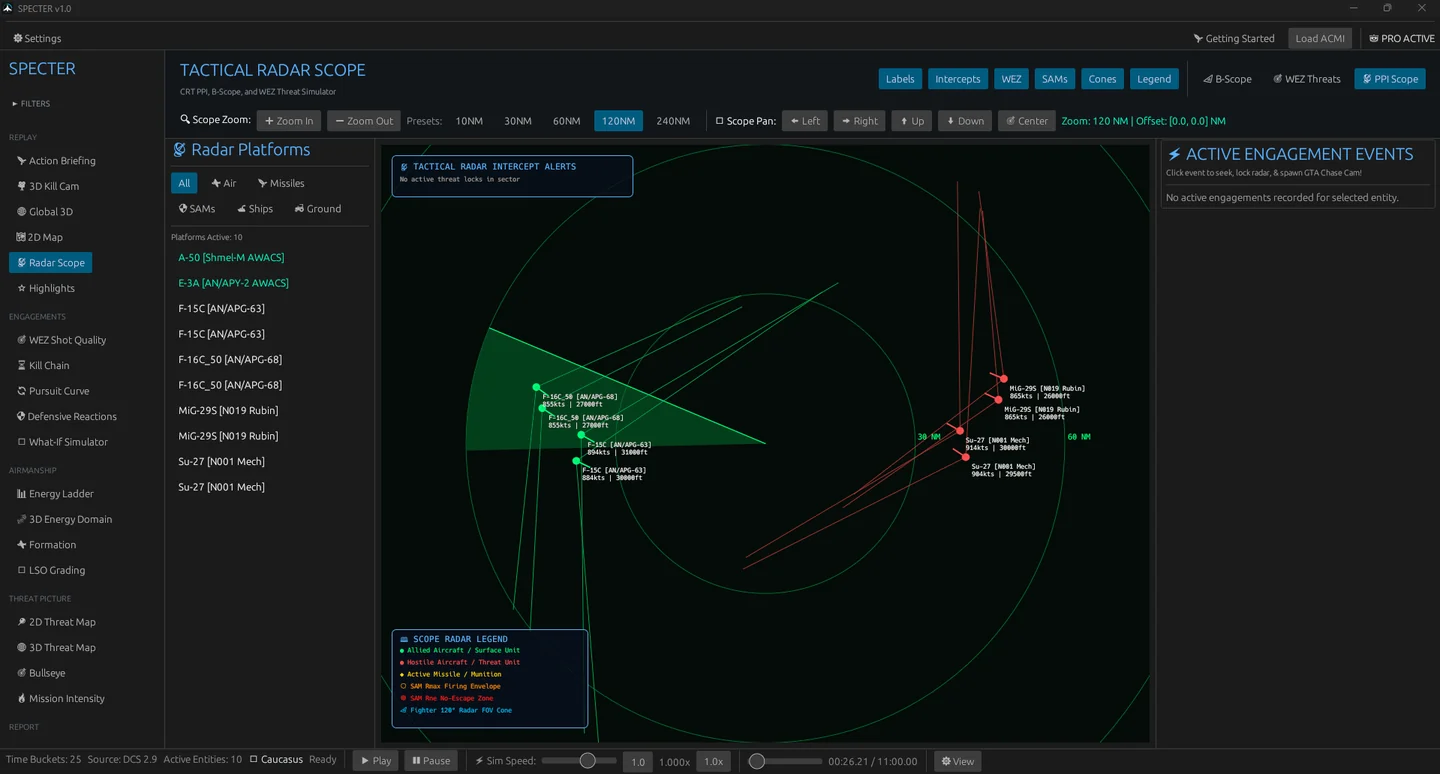
Replay · press 4The picture as a scope would have drawn it: contacts in range and azimuth from your own nose, rather than laid out on a map.
Highlights
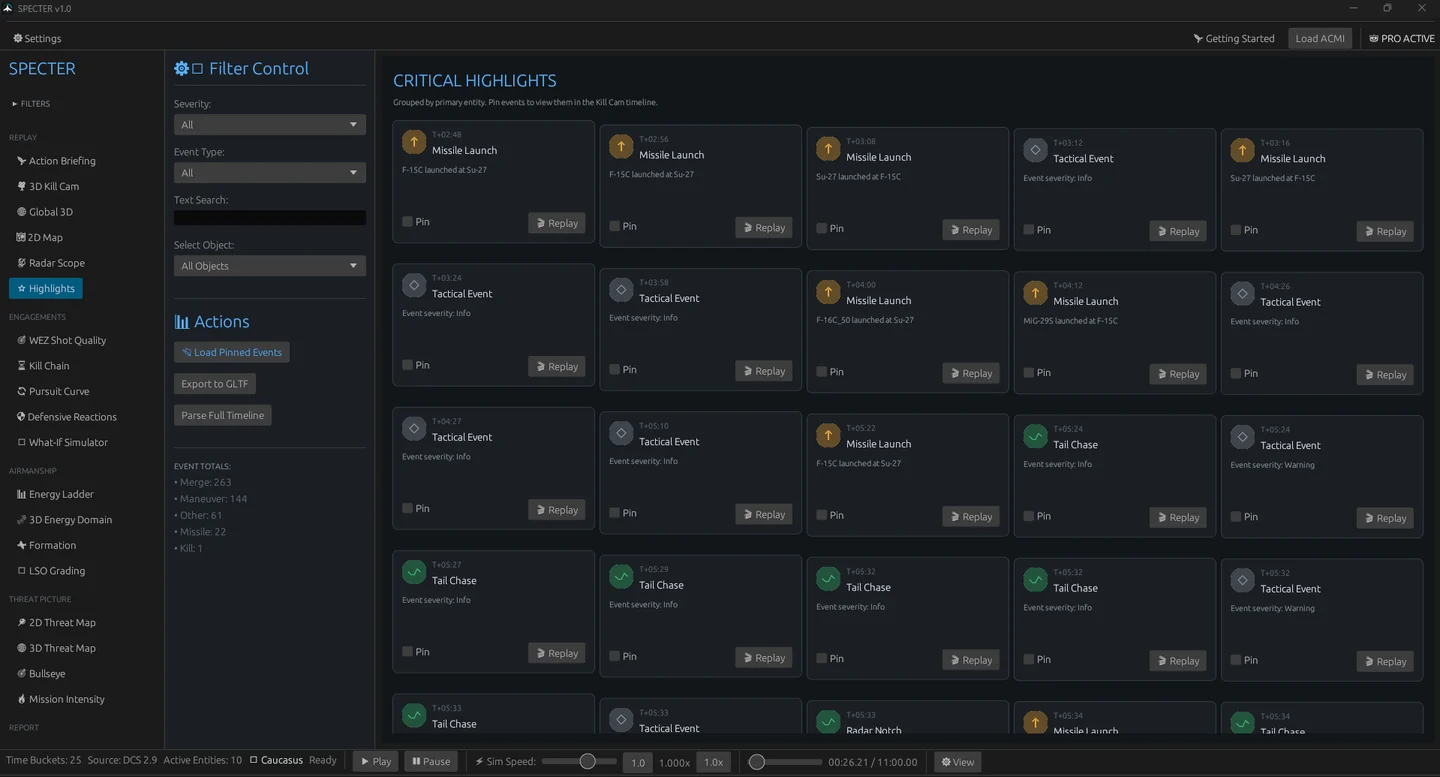
ReplayEvery detected event in one list — launches, kills, merges, defensive breaks — each one a jump straight to that moment.
WEZ Shot Quality
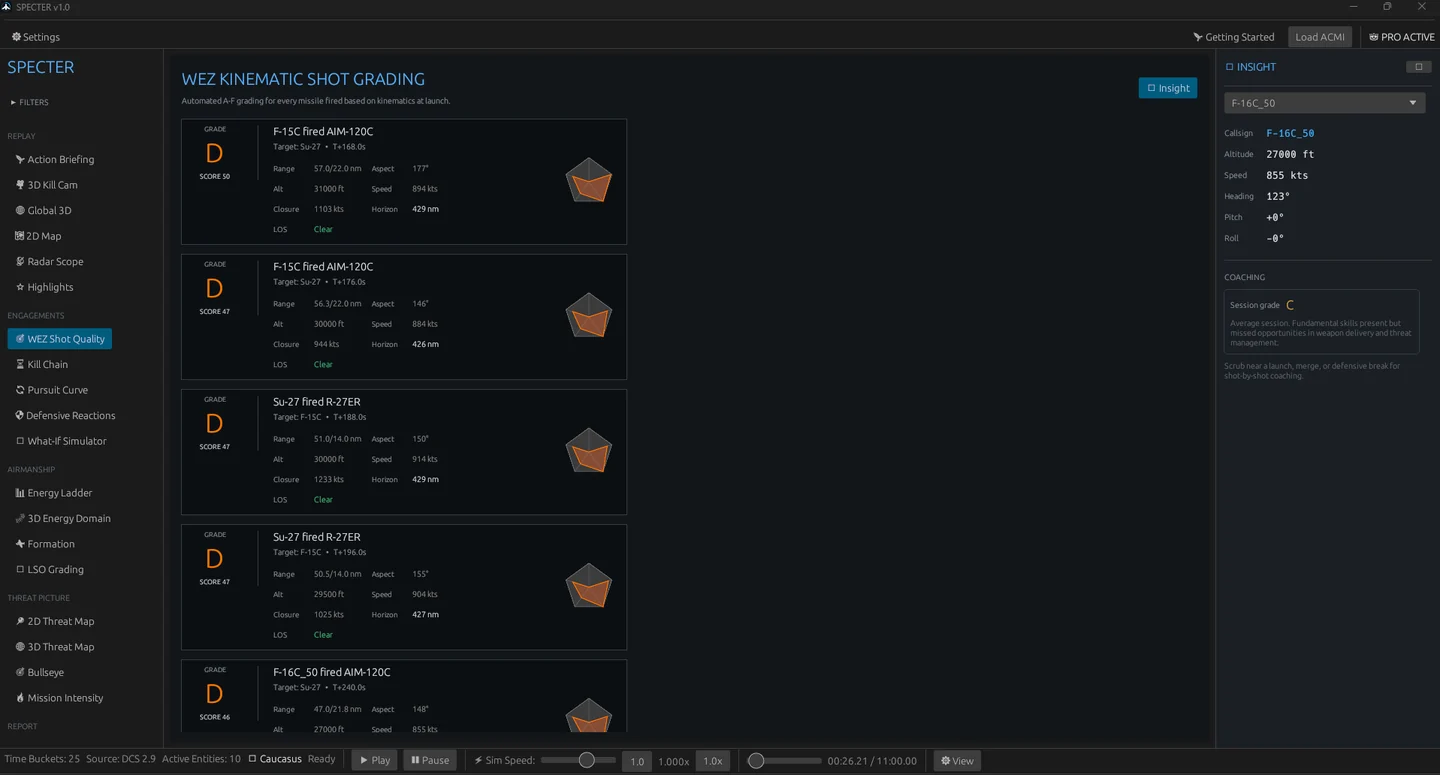
EngagementsEvery missile you fired, graded: was it inside a sensible engagement zone, at what aspect, with what energy — and what the target did about it.
Kill Chain
EngagementsDetect, track, engage, kill — reconstructed as a timeline per aircraft, so you can see how long each stage took and where one broke down.
New in 1.2 Every kill now names its weapon and how confident the attribution is. DCS's export records no shooter for anything — not even missiles — so Specter traces each weapon back to where its first sample was written, the rail or the muzzle, and credits whoever was standing there. Gun kills are included, with the number of rounds that arrived.
Pursuit Curve
EngagementsLead, pure or lag — which one you flew, when you switched, and what it cost you in turn room.
Defensive Reactions
EngagementsDid you react to the launch, how long did it take, and did what you did actually work — notch, flare, drag, or none of the above.
What-If Simulator
EngagementsChange one decision — the shot range, the break turn, the altitude — and see how the engagement would have gone instead.
Energy Ladder
Airmanship · press 5How you spent speed and altitude through the fight, against everyone else in it. The aircraft with energy at the merge usually decides how the merge ends.
3D Energy Domain
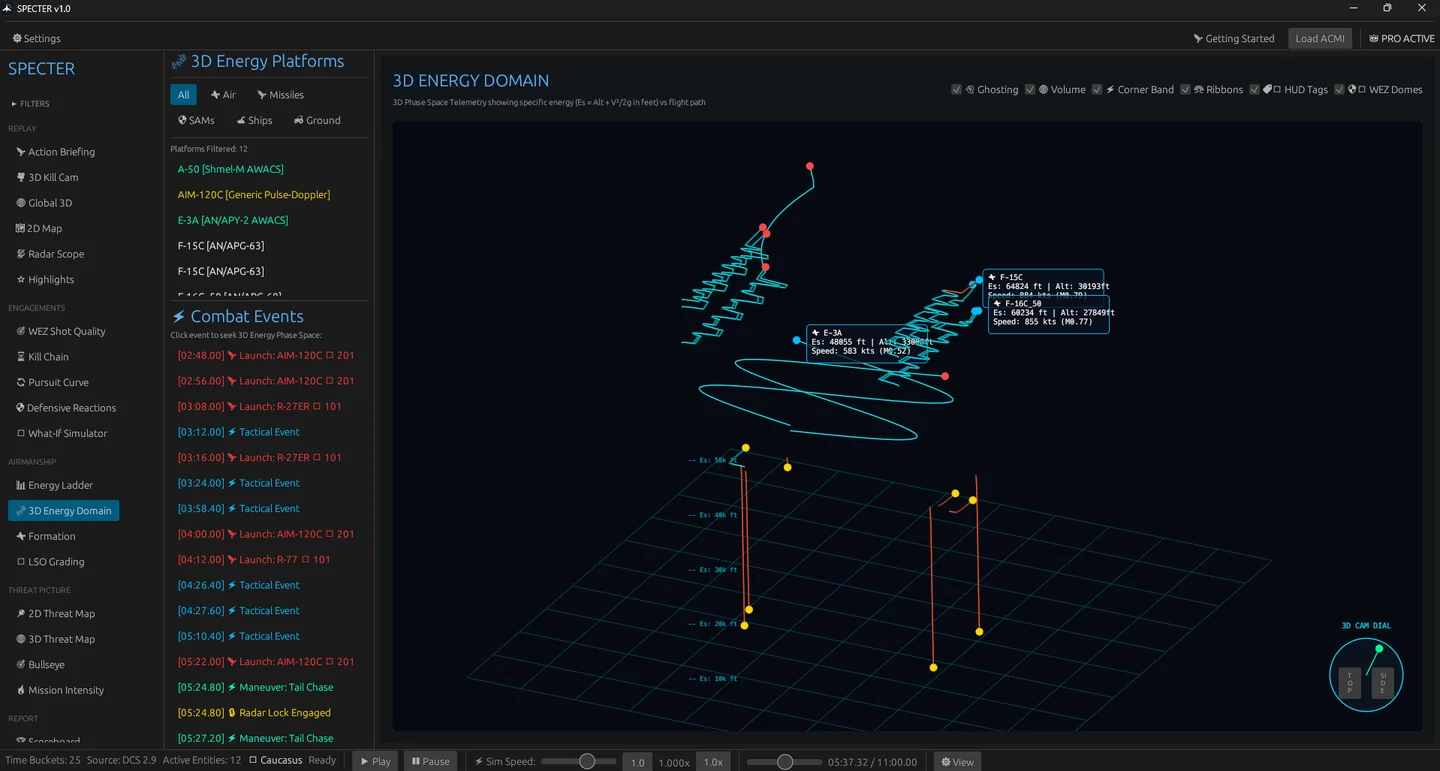
AirmanshipThe same story as a surface: speed, altitude and time as one shape you can rotate, so a long slow bleed reads differently from a single hard break.
Formation
AirmanshipSpacing, line abreast, and how well the flight held together through the engagement.
LSO Grading
AirmanshipYour carrier approach graded the way a Landing Signal Officer would grade it — glideslope, lineup, angle of attack, and the wire you caught.
Threat Map
Threat picture · 2D and 3DWhere the air defences were, how far they reached, and exactly which parts of your route were inside them.
Bullseye
Threat pictureEvery contact expressed as a bullseye call, so you can check the picture you passed on the radio against the picture that actually existed.
Mission Intensity
Threat pictureWhen the mission was busy and when it was quiet — the fastest way to find the five minutes worth watching in a two-hour recording.
Scoreboard
Report · press 8Every participant ranked: kills, deaths, shots taken, missiles defeated, and distance flown.
New in 1.2 Kills are counted for the first time, with a separate Guns column. Deaths are also told apart from disconnects — a track ending because a pilot left the server is not a loss, and counting it as one put fictitious deaths against people who simply logged off.
AAR Report
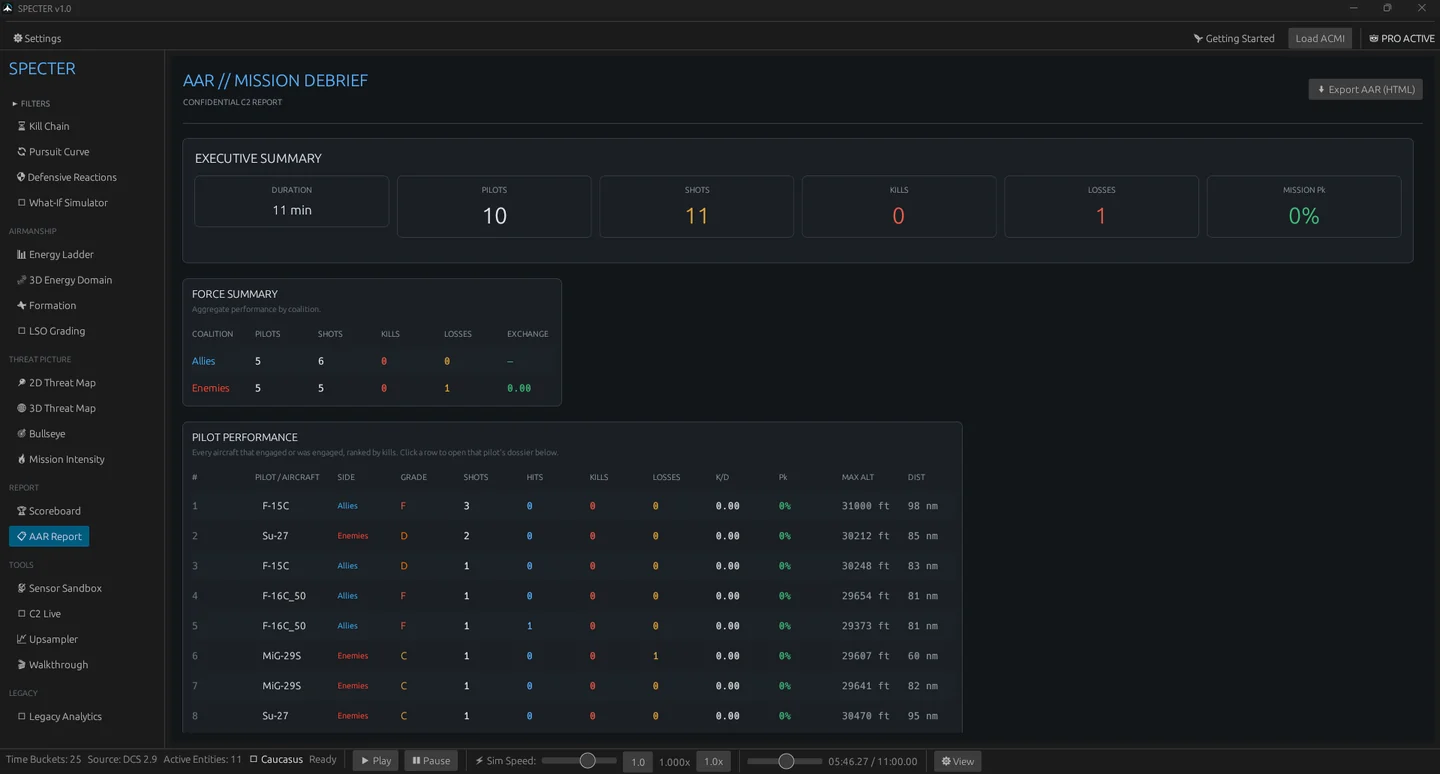
ReportThe written debrief: every pilot, weapons employment, the full timeline — exportable as a self-contained HTML file you can send to your squadron or print to PDF.
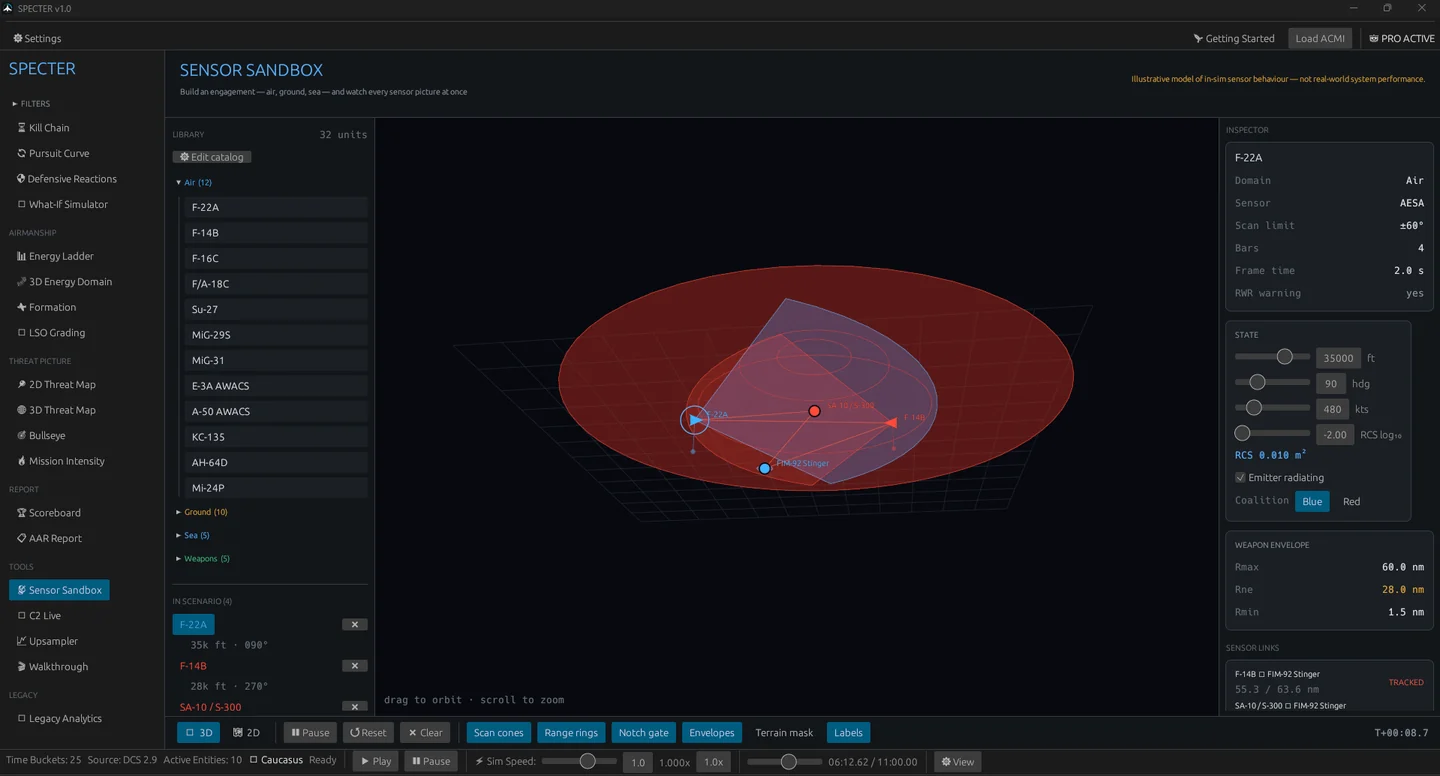
Sensor Sandbox
Tools · no recording neededBuild any engagement from scratch — aircraft, SAM sites, ships, MANPADS — and watch every sensor picture at once.
C2 Live
ToolsWatch a DCS mission as you fly it, and record it to an ACMI you can debrief the moment you land. Needs a small export script installed into DCS — the guide covers it.
Upsampler
ToolsCampaign and multiplayer recordings often carry only a few position updates per second, which makes playback stutter. The upsampler fits splines through the track and writes a new ACMI at the rate you choose.
New in 1.1.2 One-click presets for 30, 60, 90 and 120 Hz, and it no longer needs Python installed — the interpolation runs inside Specter and works offline.
Record from MSFS
MSFS mode · Tools · press 5Capture a Flight Simulator sector straight into Specter. Nothing is installed on the simulator side — no SDK, no add-on — because Specter speaks SimConnect itself.
How to read it
- Green dot and an aircraft name means telemetry is arriving.
- Amber means the sim is not running or no flight is loaded yet — it keeps retrying.
- Load in Specter after finishing opens the flight immediately.
Worth knowing
Frames are written as they arrive, so a capture survives a sim crash or a power cut.
Flight Report
MSFS mode · press 2The whole sector on one screen: altitude and speed profile, fuel burn, engine N1/N2 and EGT, and a phase breakdown from taxi to rollout with the time spent in each.
Panels for data your aircraft never reported say which channel is missing, rather than drawing a flat line at zero — a statement about the data, not a false statement about the flight.
MSFS Coaching
MSFS mode · press 3Airline-style findings against the flight: the stabilised-approach gates at 1,000 ft and 500 ft, sink rate and speed on final, touchdown load, and the 250 kt limit below 10,000 ft.
A training aid, not a flight data recorder. Microsoft Flight Simulator is not an FAA-approved training device. The thresholds follow published airline practice so the feedback is meaningful, but a Specter capture is not FOQA data and must not be used for any regulatory or certification purpose.