 SPECTER
Real elevation, not a flat plane
Thirteen DCS theatres built from public-domain elevation data. The ridgeline that masked your radar is the ridgeline that was actually there.
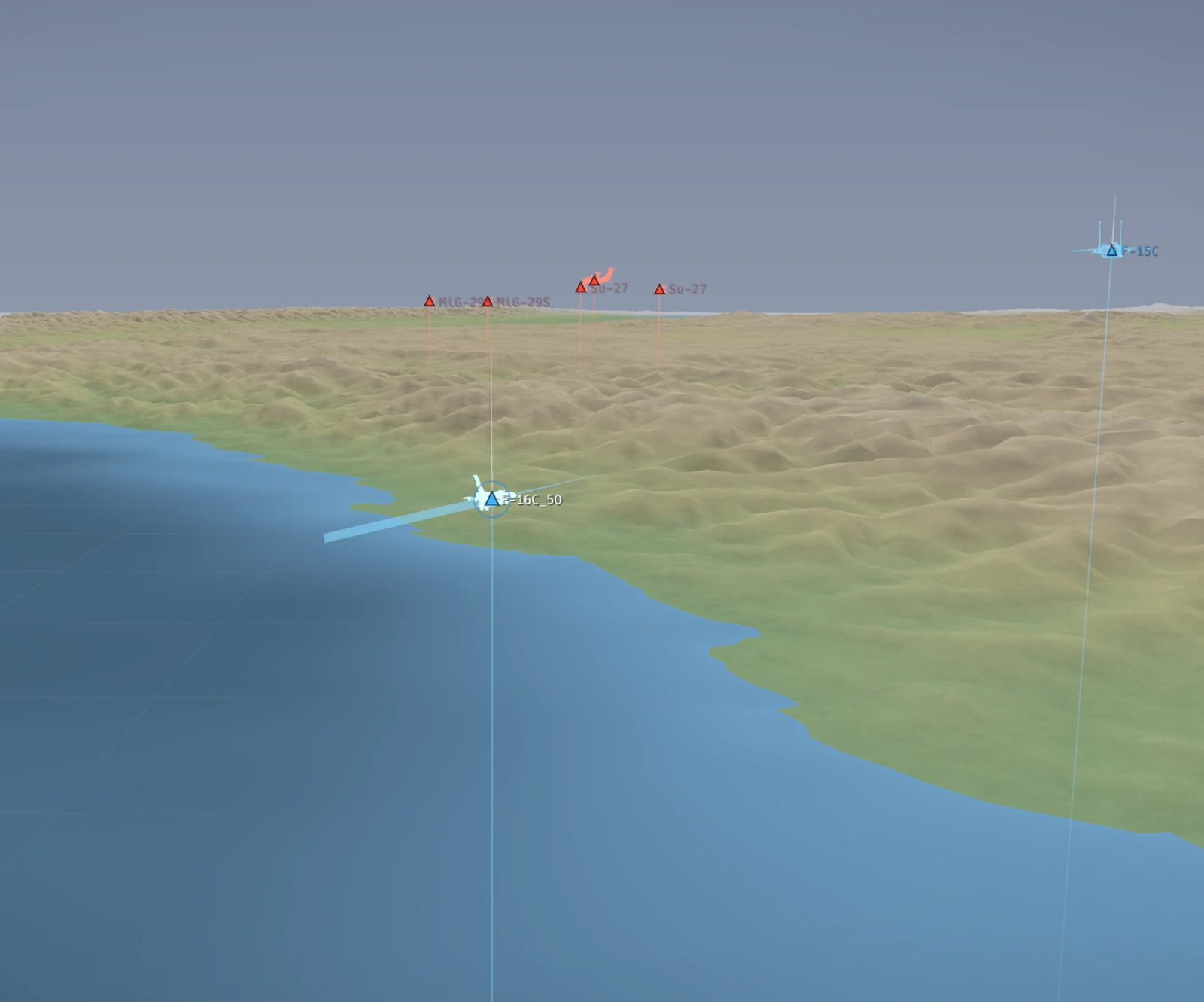
Flight Debriefing for DCS World & Standalone ACMI
Drop your Tacview file into Specter. In three minutes: see what killed you, when the fight turned, whether your missile had genuine Pk, and whether you defended too late — reconstructed in 3D over real terrain.
Scrubbing a timeline by hand is not a debrief.
You know you got shot. What you don't know is the moment it became inevitable — the turn that bled the energy, the shot taken two miles outside a sensible envelope, the notch that came four seconds too late.
Finding that by dragging a scrubber is slow enough that most people stop doing it. Specter reads the same file and marks those moments for you, with the geometry and the numbers attached.
What you get
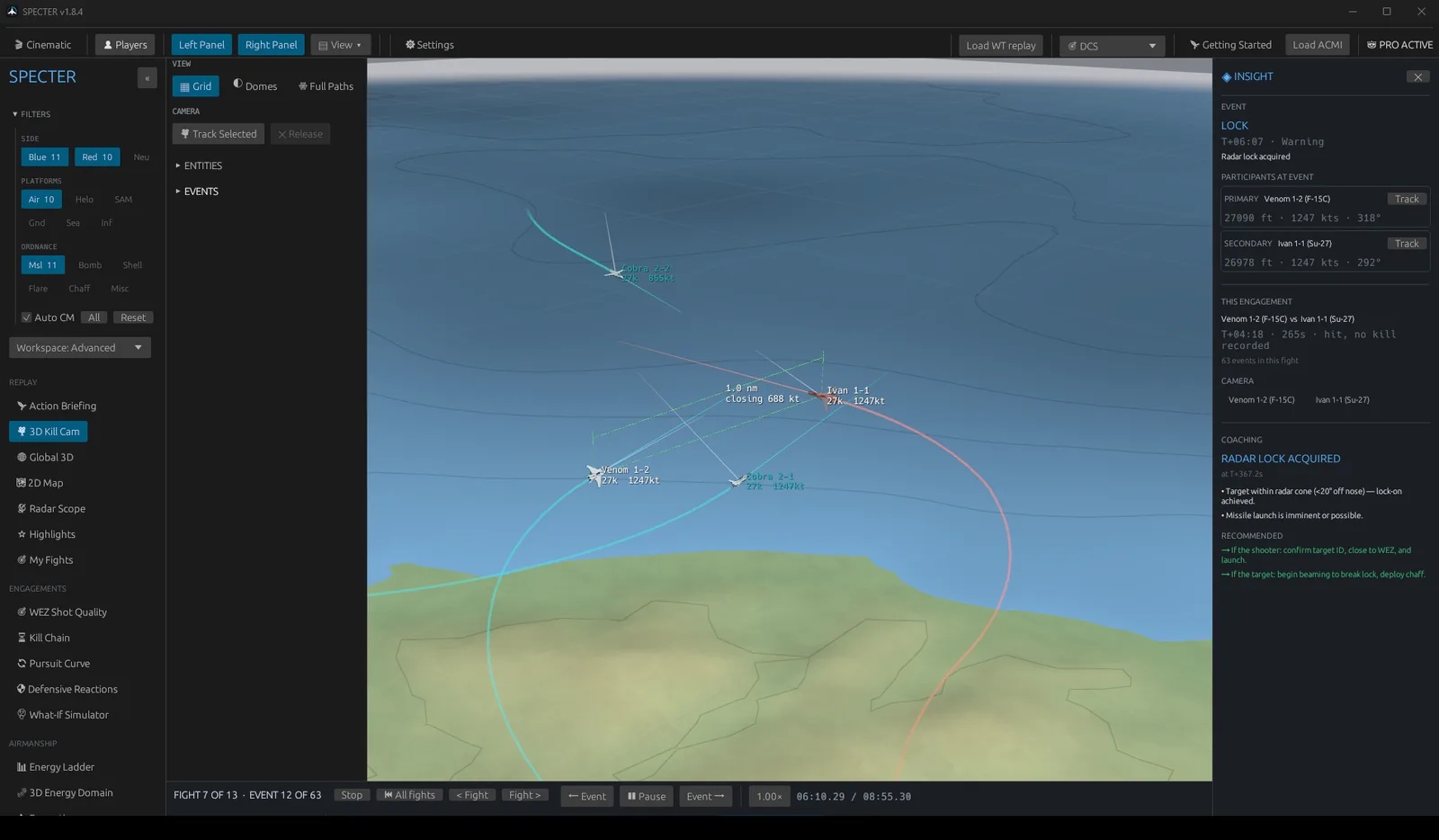
Every engagement rebuilt as a clip you can orbit, pause and scrub. Shooter, target, weapon and the geometry between them — plus what the merge actually was, and what you should have done differently.
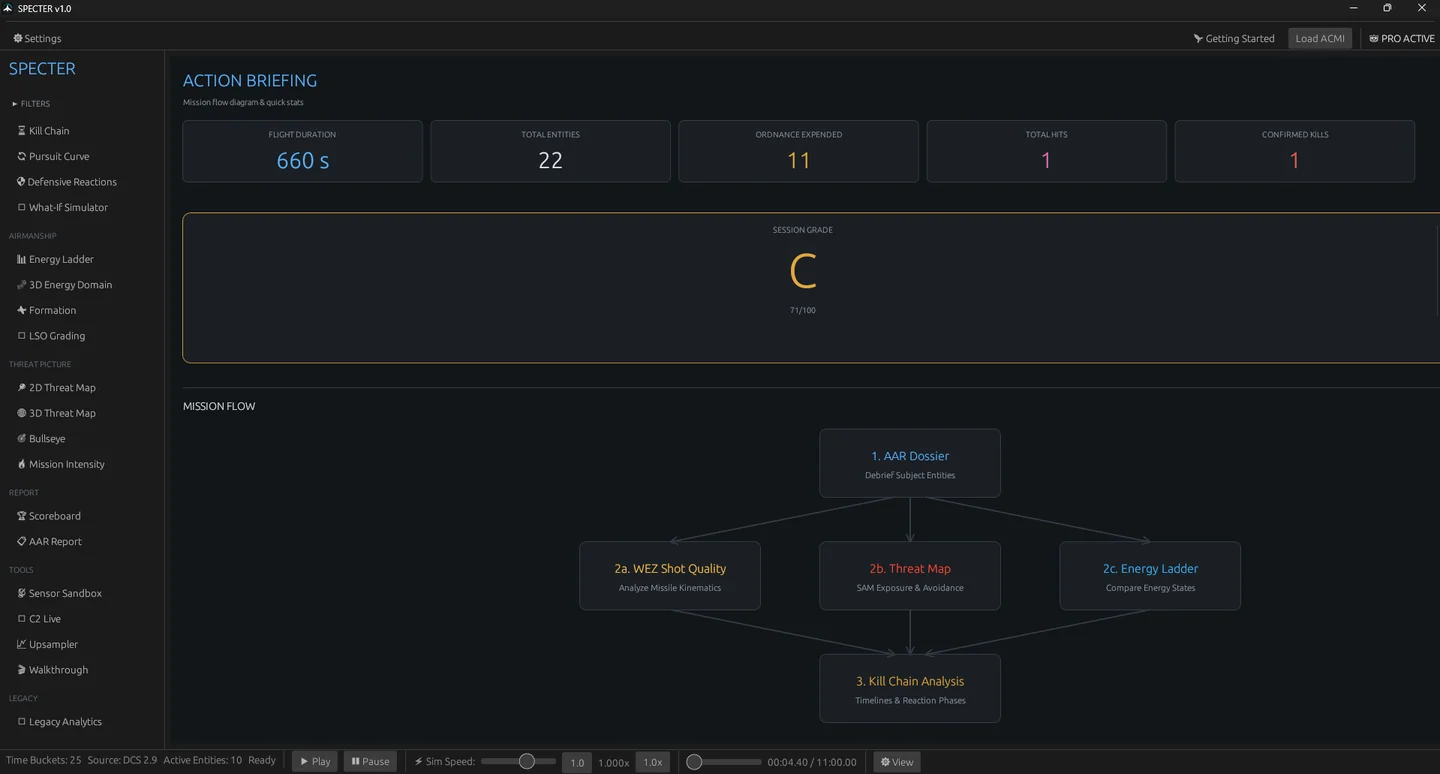
The whole mission as a timeline of what actually happened, not a wall of raw telemetry. Filter to shots, kills, merges or defensive manoeuvres and jump straight to any of them.
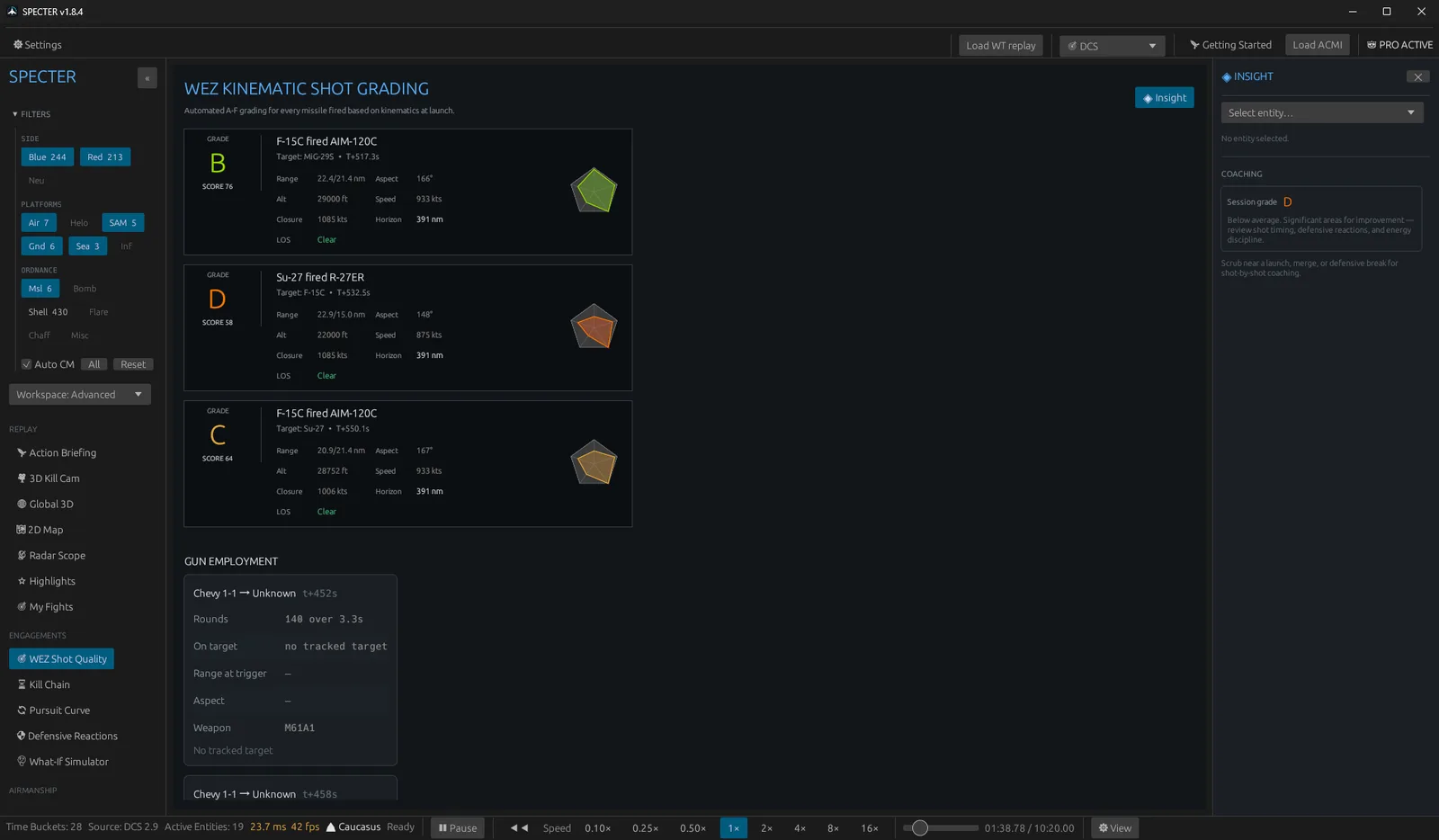
Every missile you fired, scored against the envelope it was fired from. Range, aspect, closure and altitude at pickle — so "it missed" becomes a reason instead of bad luck.
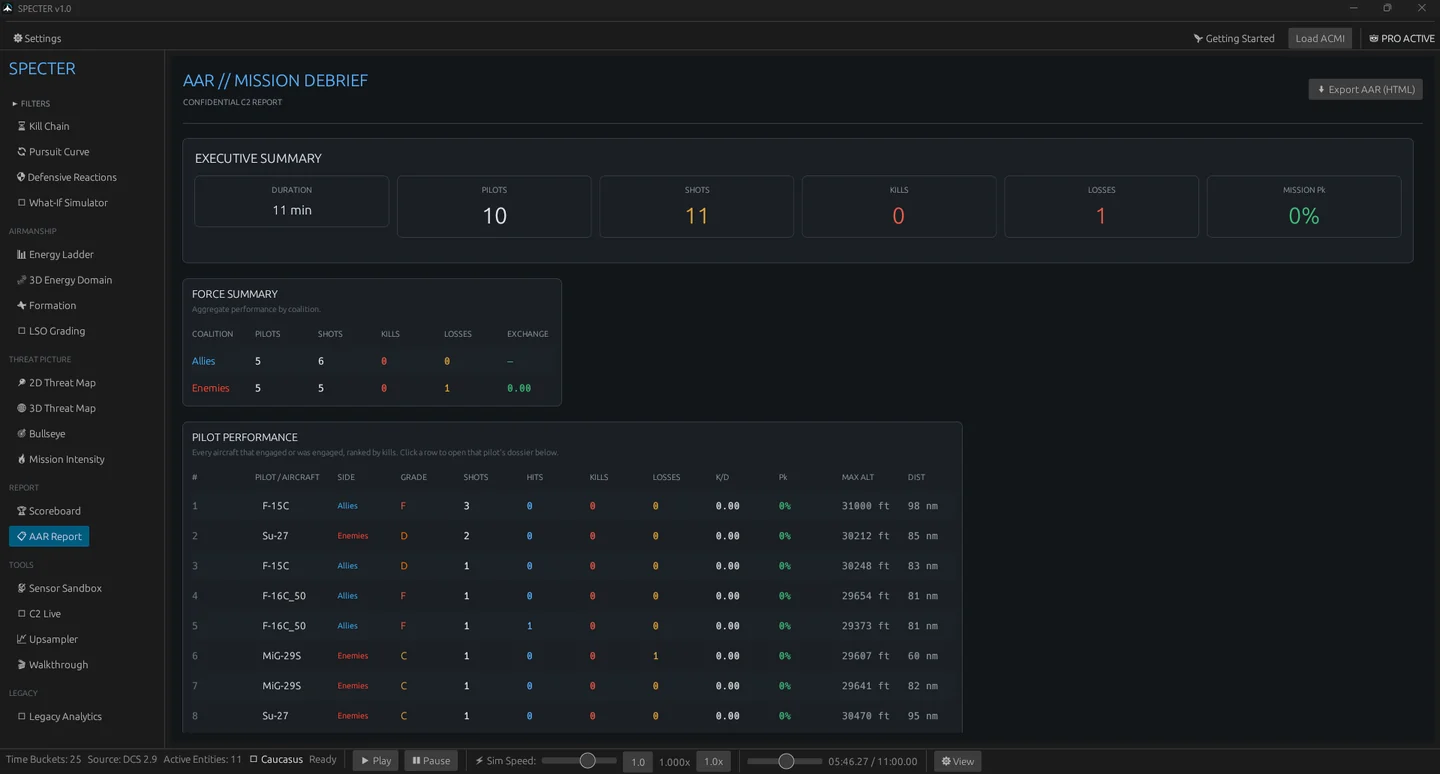
A written debrief you can export and send to your flight. What happened, who did what, and where it turned — in prose, not a spreadsheet.
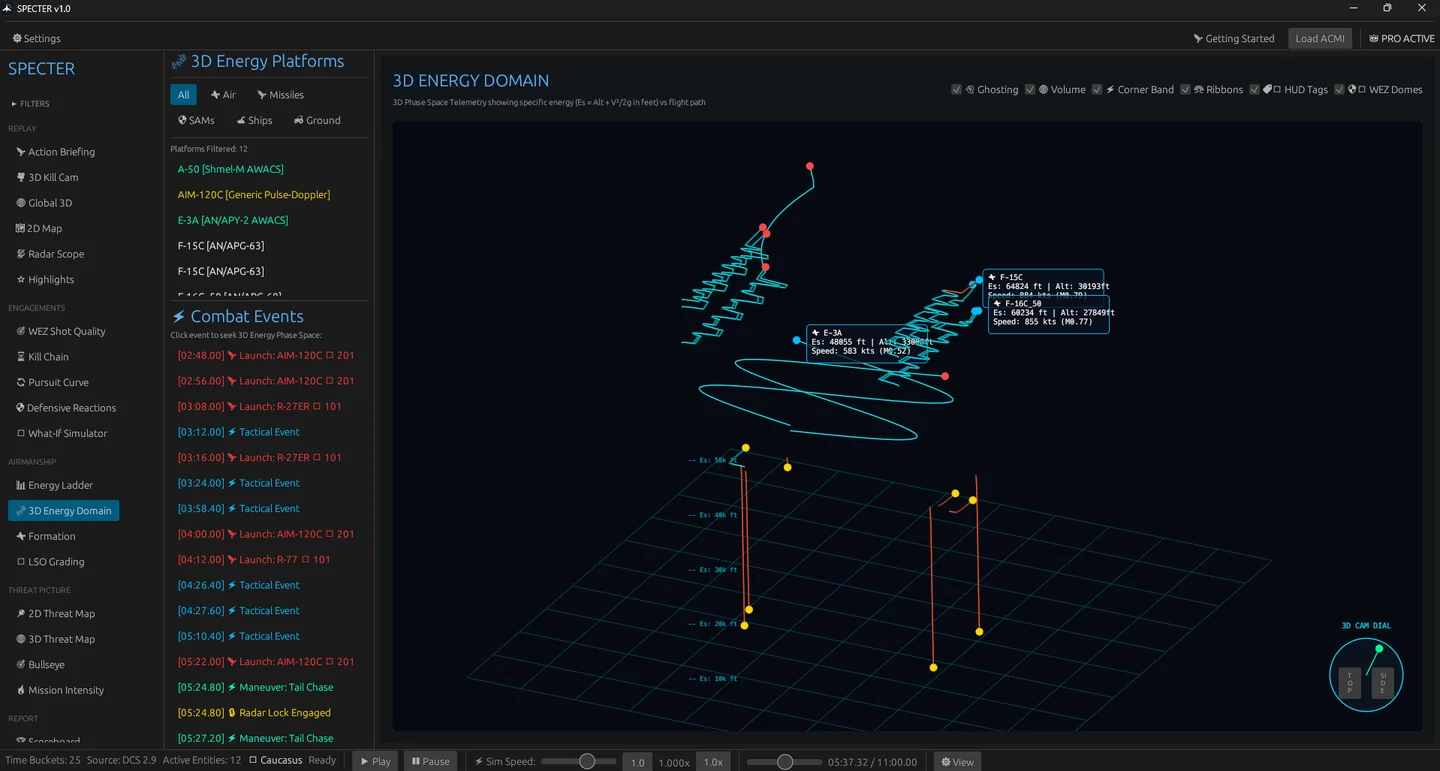
How you spent speed and altitude through the fight, drawn as a domain you can actually read. Corner speed, energy deficit, and the point where the rate fight was already lost.
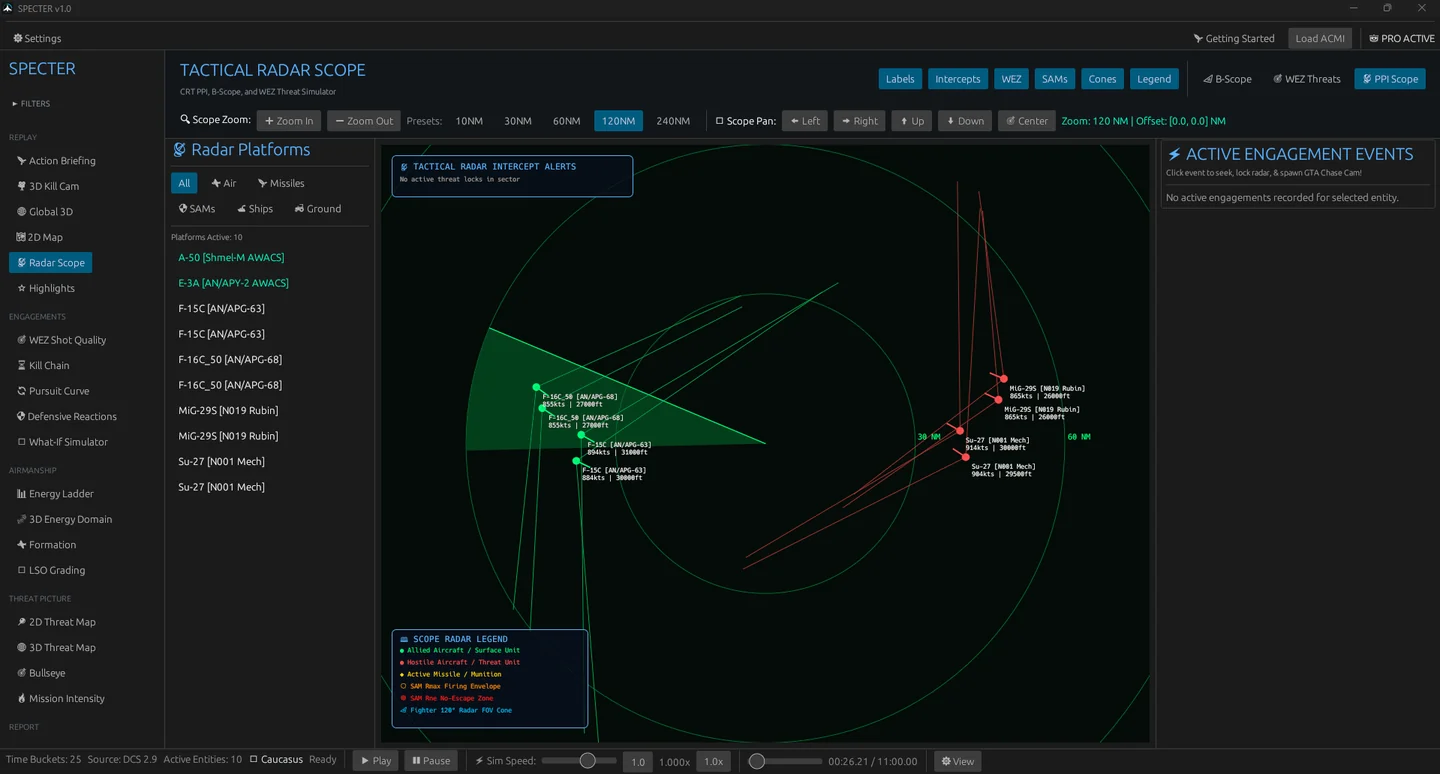
Radar scope, threat rings and a sensor sandbox. See what could see you, and where the terrain was actually masking you — measured against real elevation, not a guess.
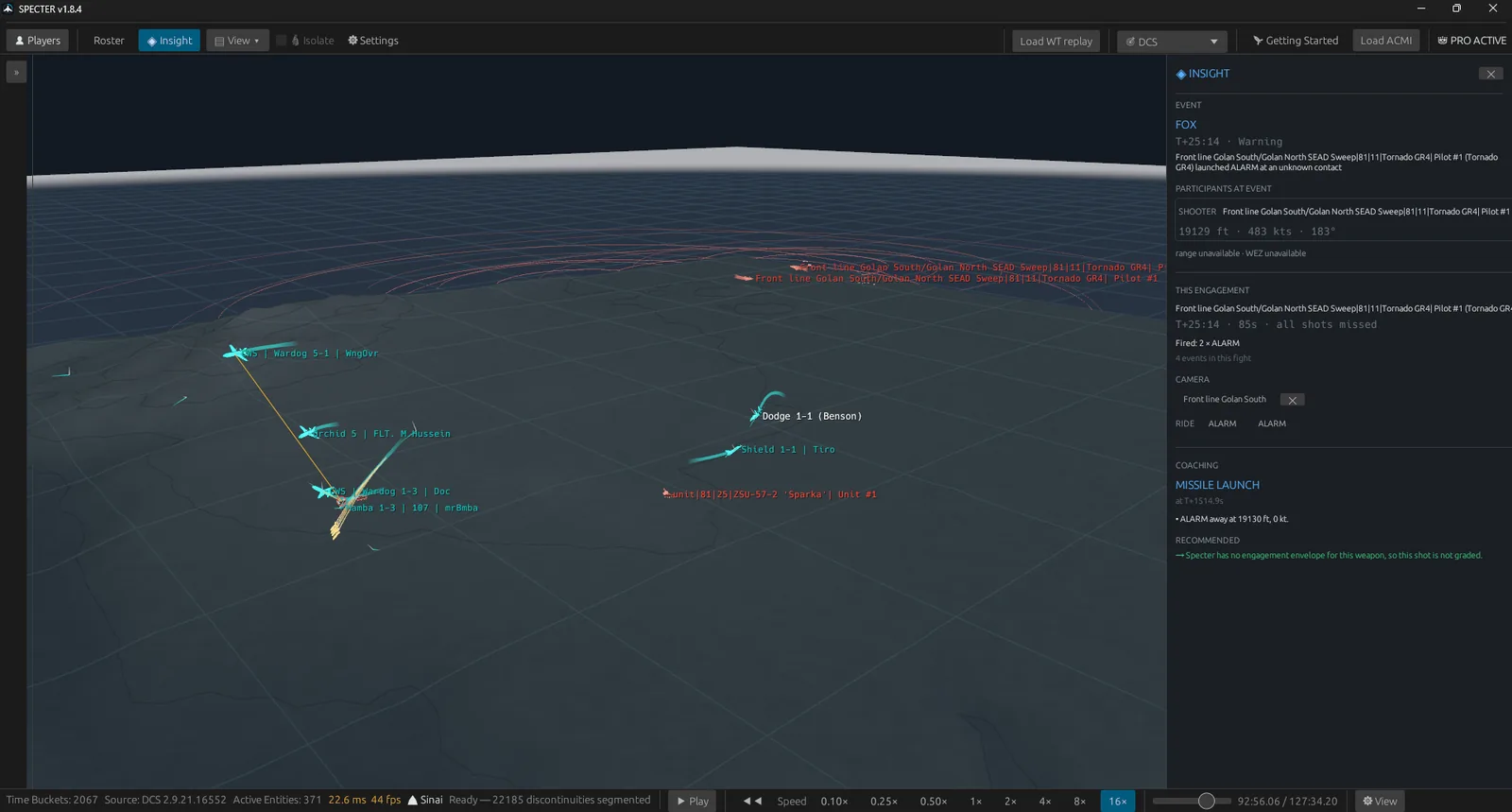
The whole mission at once, over real elevation — every contact, every trail, every threat ring. Click any aircraft or ground unit and the camera follows it. The panel beside it explains the event under the playhead: who shot, from what range, and whether the shot was ever inside its envelope.
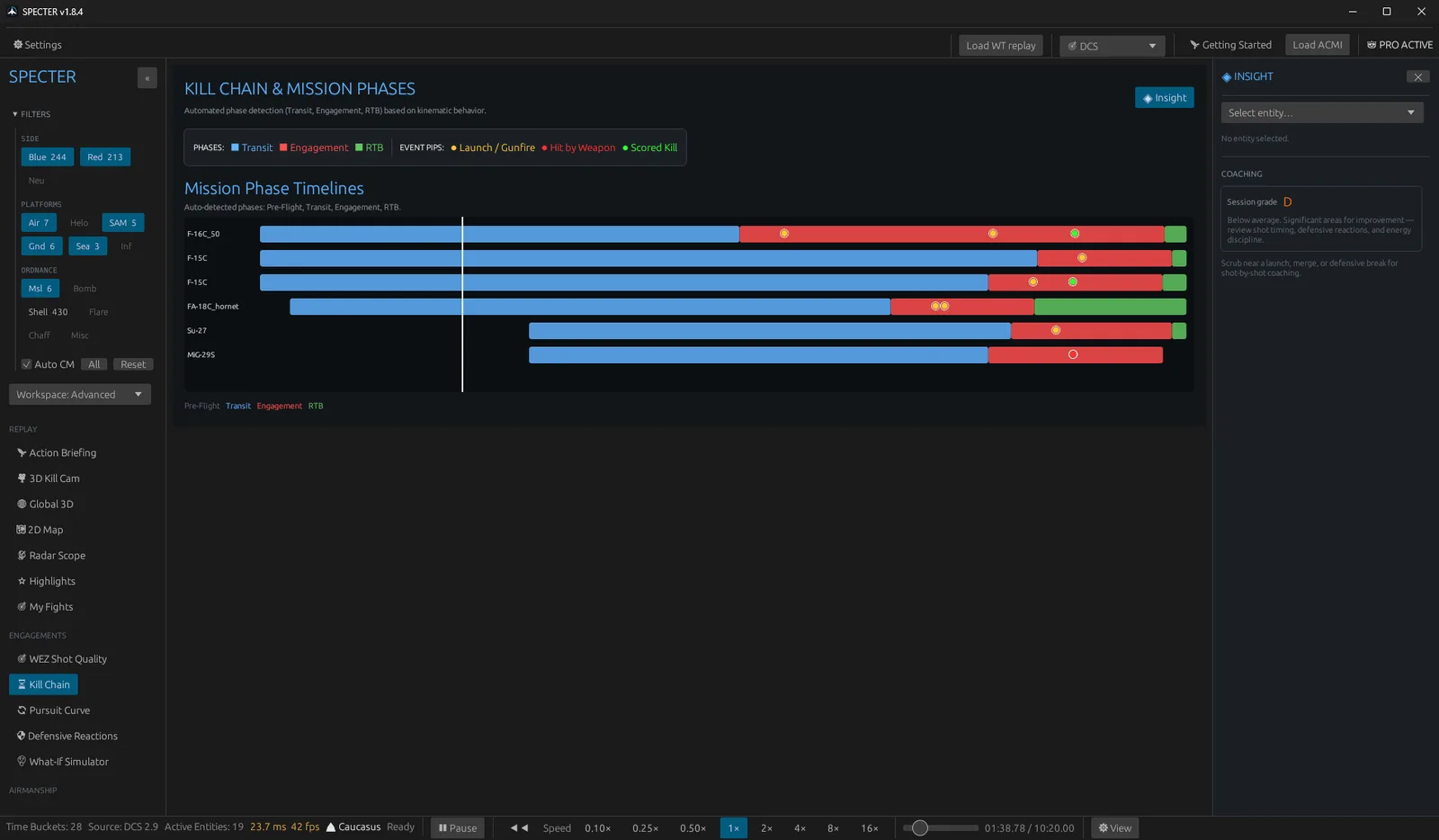
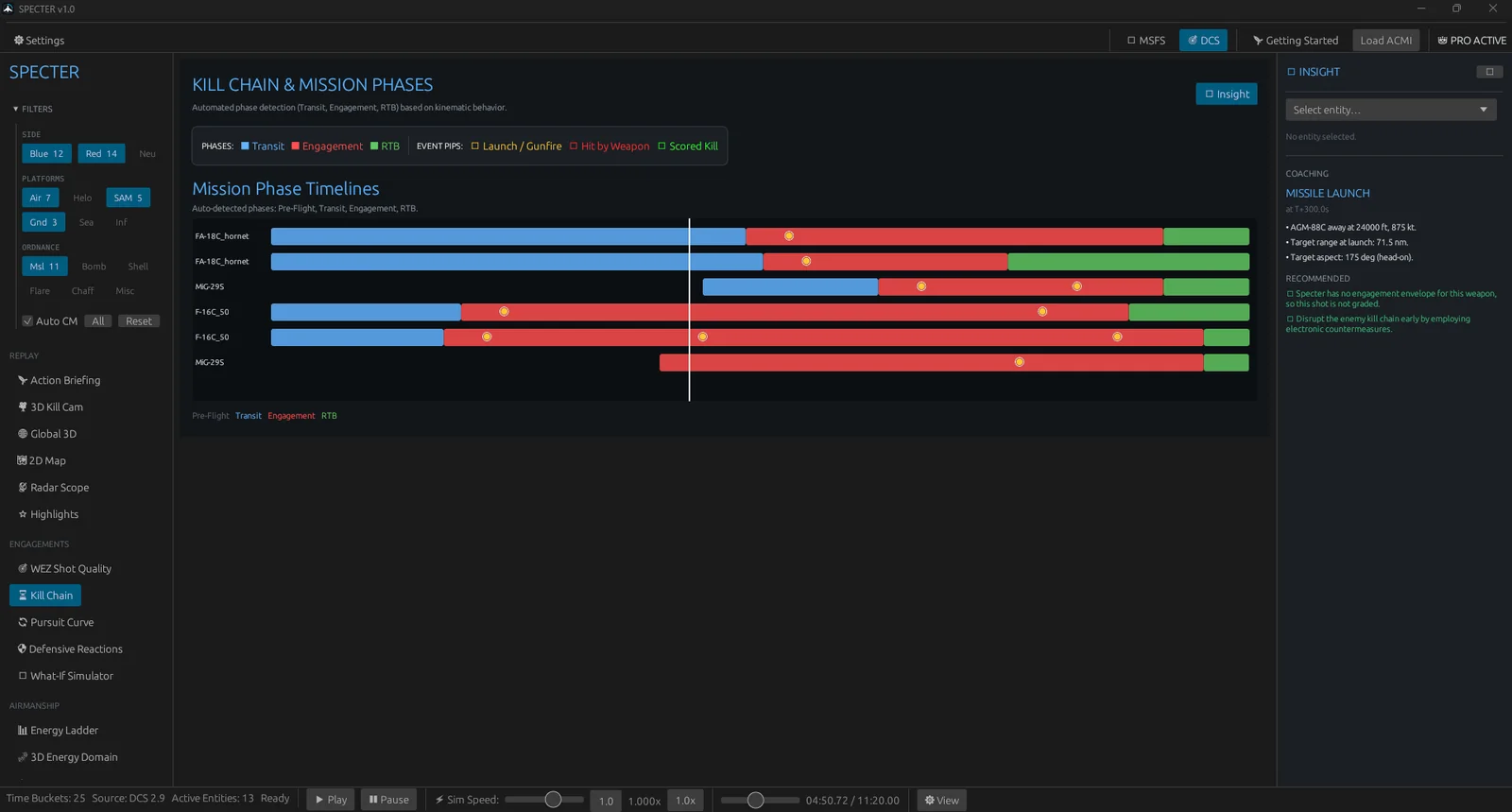
Every aircraft's mission as a single bar — transit, engagement, RTB — detected from how it actually flew rather than from anything you tag. Launches, gunfire and scored kills sit on the bar as pips, so the order things happened in reads across the whole flight at once.
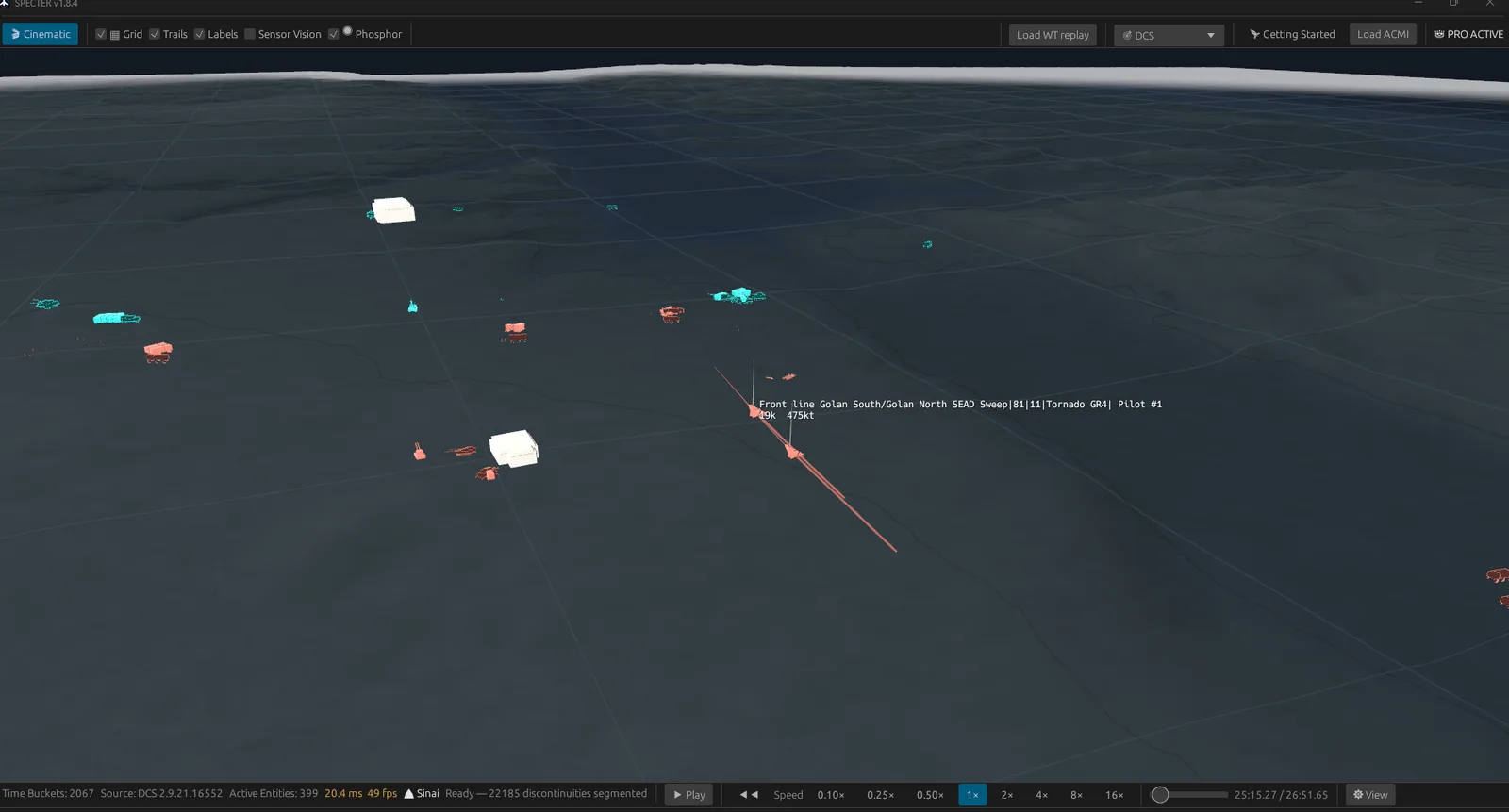
A view mode for finding contacts rather than admiring them. Aircraft and vehicles become self-lit silhouettes and the world drops to near black underneath, so a crowded fight reads at a glance. Shading an aircraft realistically is exactly what loses it against ground of the same brightness — this trades that away on purpose.
See it running
A 401-contact DCS mission over Sinai, played back in Phosphor. No narration, nothing sped up, nothing staged — the frame counter is in the corner of both clips.
Automatic detection
Load the file and the timeline populates itself. Each event carries the geometry that produced it, so you can go straight from "something happened here" to why.
Thirteen DCS theatres built from public-domain elevation data. The ridgeline that masked your radar is the ridgeline that was actually there.
Aircraft, helicopters, vehicles, air defence, ships and structures — so a SAM site looks like a SAM site instead of a marker.
Recordings are processed locally and never uploaded. No account, no telemetry about your missions, no connection required.
Reads ACMI 2.2, including zipped recordings. If you already record with Tacview, you already have everything you need.
How it works
Specter does not replace Tacview — Tacview records the flight, Specter analyses the recording afterwards. You keep recording exactly as you do now.
DCS World writes an .acmi recording to your Tacview folder in Documents on every flight. Nothing to change.
Click Load ACMI, or drag the recording onto the window. Zipped .zip.acmi files work too.
Every missile launch, hit, miss, kill, merge, overshoot, notch and defensive break is detected and timestamped automatically. No tagging, no scrubbing.
Open any event in the 3D Kill Cam to orbit it over real terrain, check the shot against its engagement zone, and export a written after-action report for your flight.
Who it is for
Run the mission back in front of the whole flight and export a written report afterwards. Everyone sees the same geometry instead of arguing from memory.
Show exactly where the shot was taken from, what the merge actually was, and how much energy the turn cost — with numbers attached, not opinions.
Most of what you did wrong is invisible while you are flying. Specter marks the moments worth looking at so a debrief takes minutes, not an evening.
Orbit a kill from any angle for cinematic replays. Screenshots and footage are free to use, including in monetised content.
Before you buy
| Operating system | Windows 10 or 11, 64-bit |
|---|---|
| Graphics | Any GPU supporting Vulkan or DirectX 12. Integrated graphics work. |
| Memory | 4 GB RAM. 8 GB recommended for long missions. |
| Disk space | About 1 GB with the seven included theatres |
| Input format | Tacview ACMI 2.2 (.acmi, .zip.acmi) — Tacview Starter is completely free and records flights indefinitely |
| Included theatres | Caucasus, Syria, Persian Gulf, Nevada, Marianas, Normandy, The Channel |
| Additional theatres | Afghanistan, South Atlantic, Iraq, Kola, Germany Cold War, Sinai — free separate downloads |
| Internet | Not required for analysis or activation — runs 100% offline |
Pricing & Trial
Tacview gives you a free edition to record. Specter gives you a 7-day full evaluation to debrief. Test every feature on your own sorties before spending a cent.
7-Day Free Trial
Direct download through the Microsoft Store. Test every debrief tool on your own flights with zero commitment.
Installs on Windows 10 & 11 (64-bit) · 7-day unrestricted trial
Specter Pro · Perpetual
Own Specter permanently. No subscriptions, no telemetry, and verification that runs 100% offline.
Both editions are identical in feature set and run 100% offline.
Specter is built and supported by one solo developer. A donation goes straight into development — more theatres, deeper analysis, faster fixes.
Donate via PayPalLearn Specter
You do not have to buy it to find out how it works. The walkthrough shows every screen in the real application; the guide covers everything from your first install to a finished debrief.
A guided tour of all 27 screens — what each one answers, how to read it, and what a good debrief looks like on it. Screenshots throughout.
Take the tour →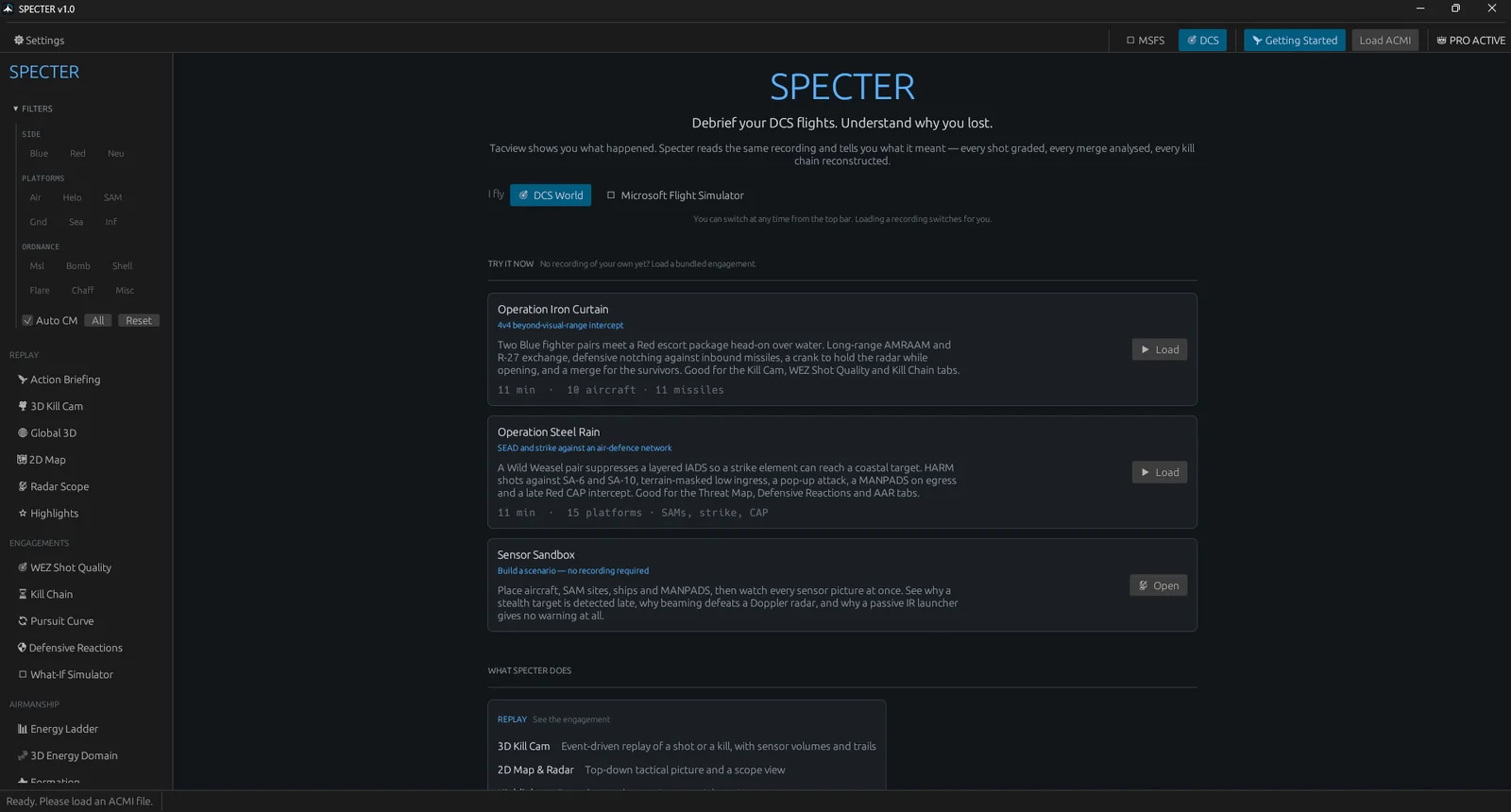
Installing, activating, loading recordings, camera and keyboard controls, terrain, live telemetry, Flight Simulator, updating and troubleshooting.
Read the guide →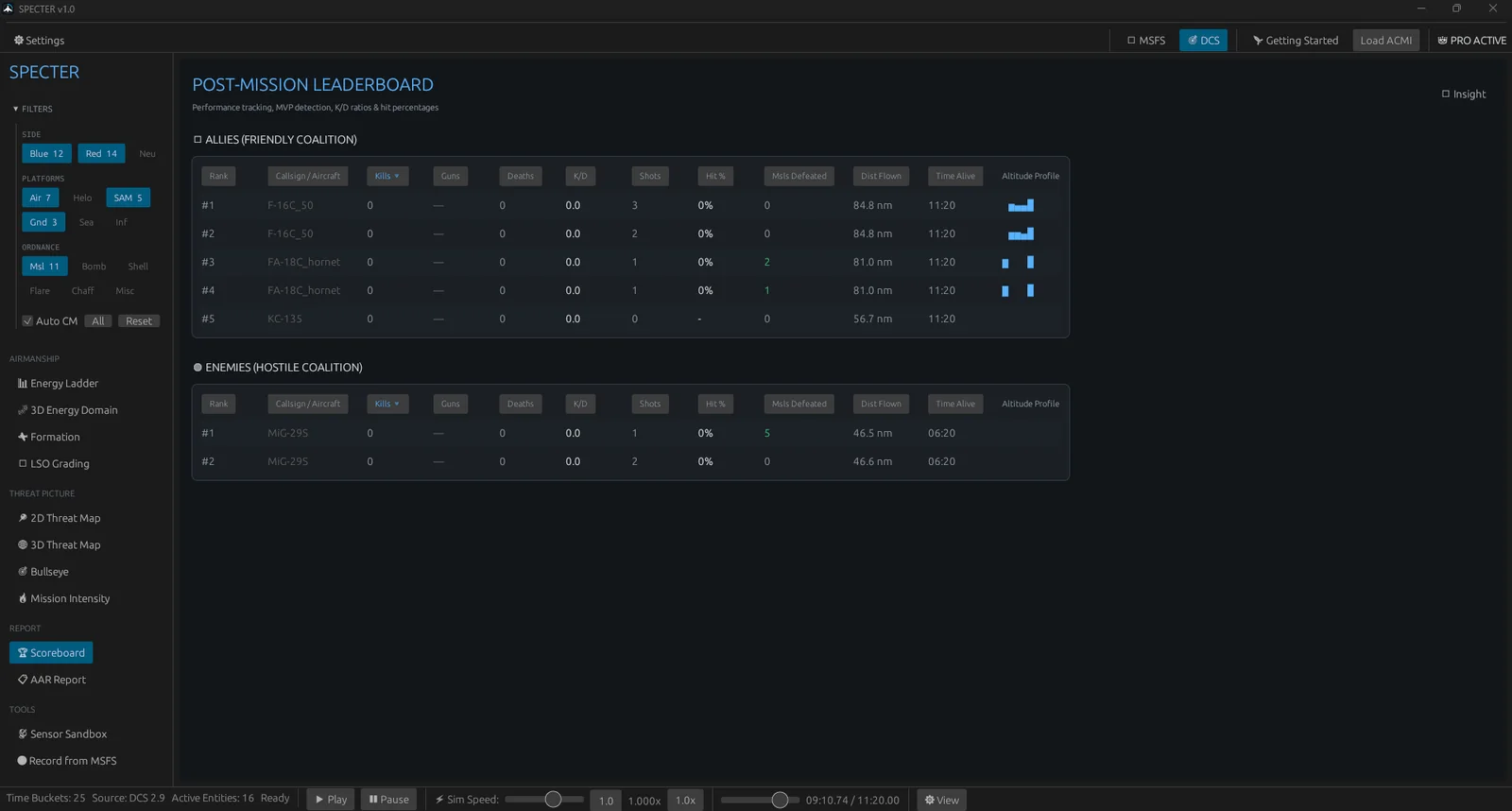
Every published build and what changed in it, plus how the signed update channel delivers them to an installed copy.
See what is new →Questions
No. Tacview Starter is completely free and records flights indefinitely. DCS writes standard .acmi recordings to your Documents folder automatically. Specter reads these files directly, meaning you never have to purchase Tacview Standard or Advanced to debrief your flights in Specter.
Yes. The Microsoft Store edition includes a full 7-day free trial with zero feature restrictions. You can load your own ACMI recordings, orbit 3D kill cams over real elevation data, inspect WEZ envelope scores, and evaluate the full debriefing workflow on your own PC before spending anything.
Standard Tacview ACMI 2.2 recordings, including zipped .zip.acmi files. DCS writes them to your Tacview folder in Documents. If you already record with Tacview, you have everything you need.
No. Recordings are processed entirely on your own computer and your licence key is verified locally. Specter never uploads your recordings and does not need a connection to activate or to run.
No. One purchase, one key, one PC. Because verification is offline, your copy keeps working regardless of what happens to us — there is no server to switch off.
Thirteen theatres have real elevation data. Seven ship with the download and six more are free separate files you drop into the terrain folder. A mission on any map still loads and every analysis still works — without a heightmap the ground simply draws as a flat reference grid.
If DCS runs, Specter runs. It is far lighter than the simulator itself and works on integrated graphics. Turn off Cinematic mode in Settings for the biggest performance saving on older hardware.
Yes. Screenshots, recordings and streamed footage are all fine, including monetised content, with no royalty and no permission needed.
No. Specter is an independent product, not affiliated with, endorsed by or sponsored by Eagle Dynamics SA or Raia Software Inc.
Specter updates itself. On launch it checks a signed manifest on this site; when a new build exists you will see a green Update to vX.Y.Z button in the top bar. One click downloads, verifies and installs the new build, and Specter restarts on it — your licence and settings are untouched. Double-clicking specter-updater.exe checks manually at any time. Full detail in the user guide.
Join the Discord or email contextgovern@gmail.com. If you attach the log file from %APPDATA%\Specter\specter.log we can usually tell you exactly what went wrong.